Linear Dimension
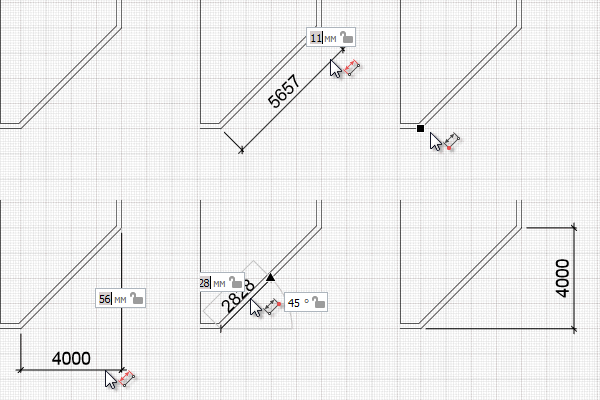
In order to plot a linear dimension:
- On the Tools panel, click the Dimension
 tool.
tool. - Select the Linear dimension
 .
. - Specify the first dimension point
- Then specify the next point.
- Move the mouse such a way that the dimension will appear in the necessary position:
- parallel to the line which passes through the selected points;
- vertically;
- horizontally.
- Specify the size of dimension extension lines
- Left-click to fix the dimension position.
- To continue plotting the dimension, specify the next point you need to measure the distance to.
- Press Esc to finish the dimension construction.
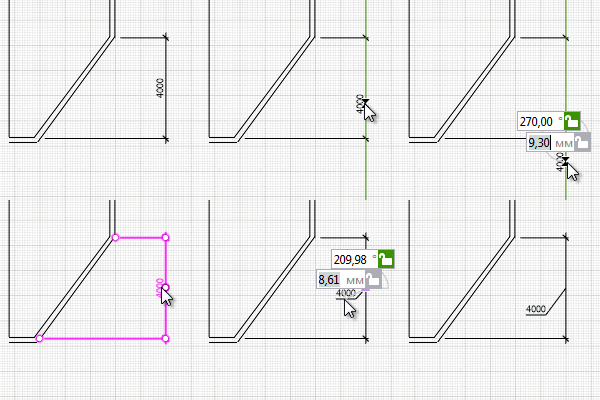
While editing a linear dimension, the text may be moved on the landing line:
- Select the dimension using the Select tool.
- Select the handle under the text.
- Move the text to the required position.
In order to put a text on the dimension line extension:
- Select the dimension using the Select tool.
- Select the handle under the text.
- Activate the tracking snap on the end of the dimension line and place the text on the tracking ray.
If the linear dimensions are plotted on the view, they will update automatically when the model is changed but only if they were built using object snaps: the object end point.
 See also