Actions
When selecting objects in a model or drawing Renga, you can do the following actions

 Direct array
In order to make direct array, do the following:
- Select an object.
- On the Actions panel, click Direct array.
- Type the distance value in the Distance between elements
 text box.
 - On the work plane, specify a point with the left mouse button.
- Move the mouse cursor in the direction where the objects need to be copied.
- Left-click to fix the objects.
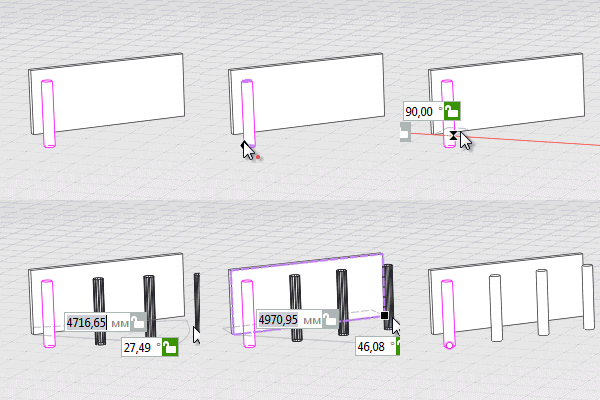

|
The action can be used to build objects in 3D measure modes: Cubic, Cylindrical and Spherical. |
 Circular array
In order to make circular array, do the following:
- Select an object.
- On the Actions panel, click Circular array.
- Type the angle value in the Angle between elements
 text box.
 - Select the circle center point by left clicking the mouse.
- Click the left mouse button again to start copying.
- Move the pointer circumferentially.
- Left-click to fix the objects.
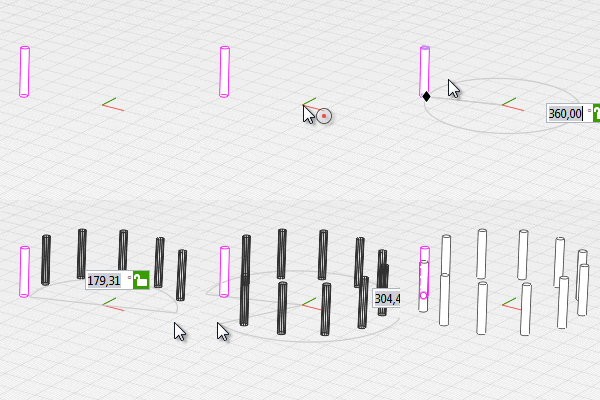
 Offset array
In order to perform the Offset array action, do the following:
- Select an object.
- On the Actions panel, click Offset array.
- Type the distance value in the Distance between elements text box.
- Move the mouse cursor in the direction where the objects need to be created.
- Left-click to fix the objects.
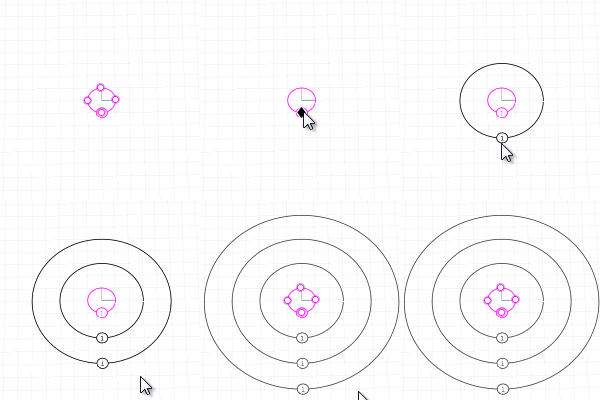
|
|
You can copy grid lines, walls, |
 Mirror
In order to create a mirror of an object, do the following:
- Select an object.
- On the Actions panel, click Mirror .
- On the work plane, specify a point with the left mouse button.
- Move the pointer circumferentially.
- Left-click to fix the objects.
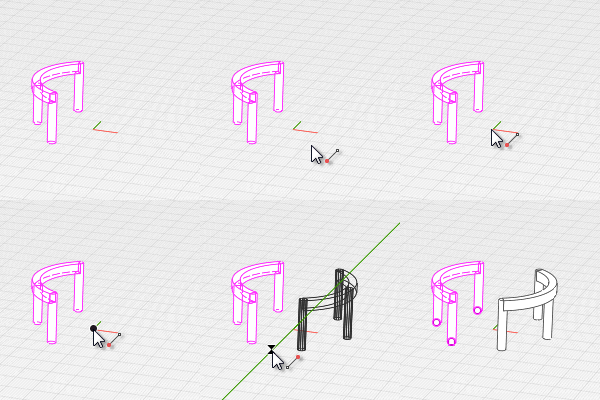
|
|
Please note, the Mirror action does't perform accurately enough for objects with an asymmetric profile shape (for example a corner) as well as for built-in or imported 3D objects. We don't recommend applying the Mirror action to a few built-in or imported 3D objects at the same time to prevent possible errors. |
 Rotate
- Select an object.
- In the Actions panel, select Rotate.
- Set a ray in relation to which a rotate will be made:
- Move the mouse cursor so as to obtain the required position of the object or set the rotate angle in the dynamic entry field (see Accurate Construction).
- Left-click to fix the object position.
|
|
Select the rotate center point by left clicking the mouse; |
|
|
Select a point on the ray. |


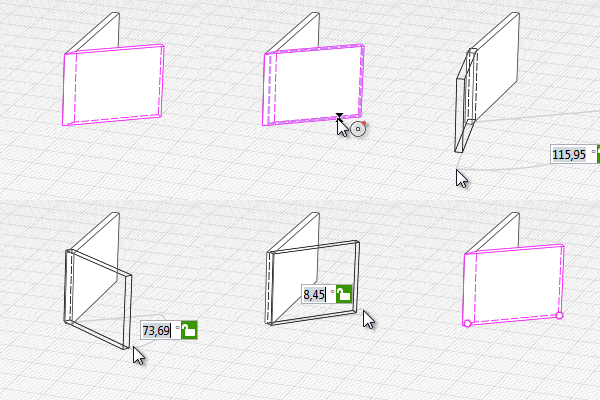
 Move
Move
In order to move objects do following:
- Select objects.
- On the Actions panel, click Move.
- Specify a point on the plane relative to which the objects will move. Objects appear in the phantom view.
- Move the pointer to the direction where you need to relocate the objects to.
- Using snaps, define the new objects' insertion point on the working plane.
|
|
The action can be used to move objects in 3D measure modes: Cubic, Cylindrical and Spherical. |
 Create copy
In order to create copy of objects do following:
- Select objects.
- On the Actions panel, click Create copy.
- Specify a point on the plane relative to which the objects will copy. Objects appear in the phantom view.
- Move the mouse cursor in the direction where the objects need to be copied.
- Using snaps, define the new objects' insertion point on the working plane.
- Keep on copying or press Esc to finish.
|
|
The action can be used to copy objects in 3D measure modes: Cubic, Cylindrical and Spherical. |
 Group
Group
- Select objects.
- In the Actions panel, select Group – Group
 or use the keyboard shortcut Ctrl+G.
 - In the Parameters panel, set Group name
 .
.
In order to modify, copy or move a group, select it by the Select tool.
|
|
If an object is part of a group, using the Select tool will only allow you to select it together with the entire group. While model objects can be selected using filters and schedules, similar objects can also be selected. |
- Select a group.
- In the Actions panel, select Group – Ungroup
 or use the keyboard shortcut Ctrl+Shift+G.
In order to regroup group objects:
- Select one of the group objects.
- In the Actions panel, select Group – Regroup
 or use the keyboard shortcut Ctrl+Shift+J.
 Trim or extend
To trim or extend objects created by specifying two points:
- Select objects.
- On the Actions panel, click Trim or extend. Objects appear in the phantom view.
- Specify the base line or edge of another object. The length of the objects is changed relative to the projection of the base line or edge on the XOY plane.
- Left-click to fix the objects.

|
|
You can trim or extend straight grid lines, walls, beams, stairs, ramps, railings, rebars, wall foundations, model lines, drawing lines. When the action is performed, the slope of the object is saved. |
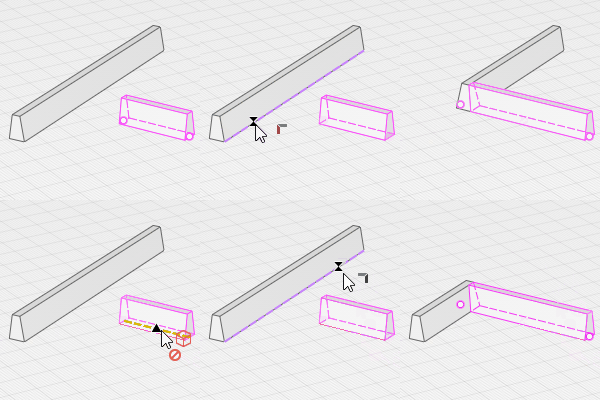
 Trim or extend to corner
To trim or extend 2 straight objects to form a corner, follow these steps:
- Select one of the objects.
- On the Actions panel, click Trim or extend to corner.
- Specify the start or end of another object that will form the corner. Objects appear in the phantom view.
- Left-click to fix the objects.
|
|
You can trim or extend to corner straight grid lines, walls, beams, stairs, ramps, railings, rebars, wall foundations, model lines, drawing lines. When you perform an action, objects baselines are connected in the plane. When the action is performed, the slope of the object is saved. |
When selecting assemblies in the model or in the Assembly Style, you can:
 Disassemble
The Disassemble action is only available for selected Assembly and is designed to convert the assembly into individual objects.
In order to disassemble the assembly, do the following:
- Select the assembly.
- On the Actions panel, click Disassemble .
|
|
In case there is Nutation angle value specified in the parameters, the Disassemble action is not available. |
When selecting objects with a Reinforcement Style in an Assembly Style, you can:
 Create rebars
The Create rebars action is only available in the Assembly style. It is used to create rebars from the reinforcement styles assigned to objects.
In order to create reinforcement bars:
- Select one or more objects that contain rebars specified using the
 Reinforcement style.
 - On the Actions panel, click Create rebars .
After creating the reinforcement bars, the reinforcement styles of the selected objects will be reset.
|
|
When selecting doors, windows and openings, the command will be inactive. |